
Getting Started with Archicad 29: From a New Project to the User Interface
Archicad is a Building Information Modeling (BIM) application developed by Graphisoft. The sample chapter of Archicad 29 Black Book introduces the software through a practical sequence: open the Archicad Home page, create or open a project, choose the appropriate project settings, and then become familiar with the interface used to work on the model.
This article follows that same sequence. The screenshots below are taken from the supplied book sample, and each image is placed beside the step it illustrates.
1. Start from the Archicad Home page
The Archicad Home page is the starting point for creating a project or returning to an existing one. The book describes three key choices available here: New project to start a project from a template, Browse project to open a project stored on the computer, and Teamwork for collaboration through BIMcloud. The book notes that Teamwork is not available in the educational version.
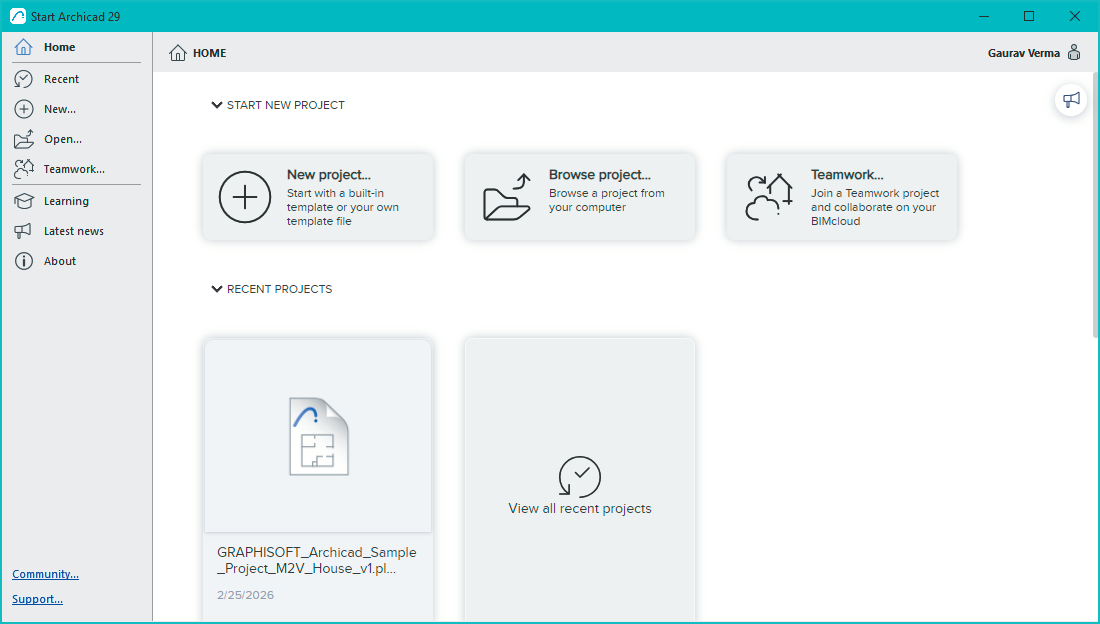
You can also open Archicad Home from the File menu. The sample book gives Ctrl+Shift+H as the keyboard shortcut for this command.
2. Create a project using a template
Choose New project on the Home page to display the New Project dialog. The sample book explains that a new project can be based on a predefined template, an online template, a template selected from a local folder, or the settings of the most recently opened project. For the built-in template workflow shown in the book, select Template and choose Archicad 29 Template.tpl.
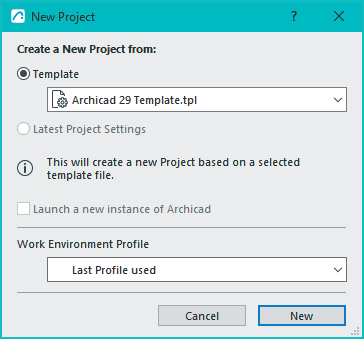
The dialog also includes a Work Environment Profile selection. As described in the book, available profiles include Current Profile, Default Profile, Architectural Profile 29, MEP Engineering Profile 29, and Structural Engineering Profile 29. These profiles provide different tool, menu, and setting arrangements for the relevant work environment. After selecting the required options, click New to continue.
The book lists Ctrl+N as a shortcut for opening the New Project dialog. If you are opening a project that already exists instead, use Browse project on the Home page, select the required file in the Open file dialog, and click Open.
3. Use the Learning Center to find guided help
After the project creation step described in the sample, the Learning Center provides ways to explore Archicad. The book identifies three options: Product Tours for guided tours of features, Quick Tutorials for short lessons on tools and commands, and Help for guidance through the design workflow.
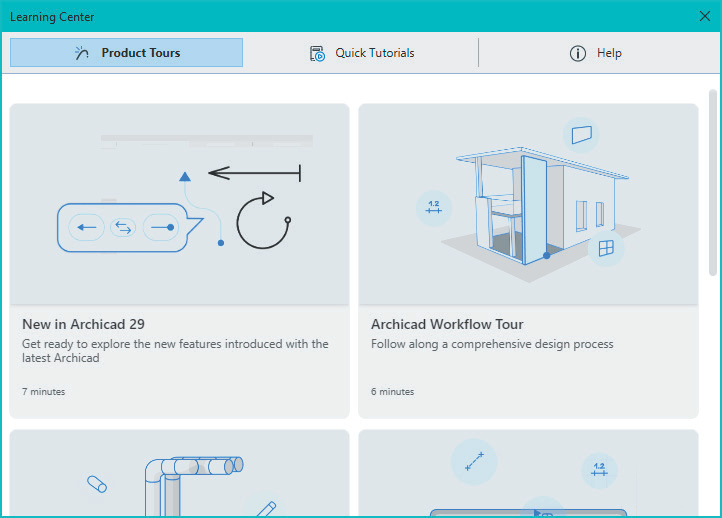
Choose the resource that matches what you need to learn, then close the Learning Center when you are ready to return to the Archicad workspace.
4. Understand the main interface areas
Once you are in the workspace, learning the purpose of the main interface areas makes it easier to find tools and navigate project views. The sample book describes the following components:
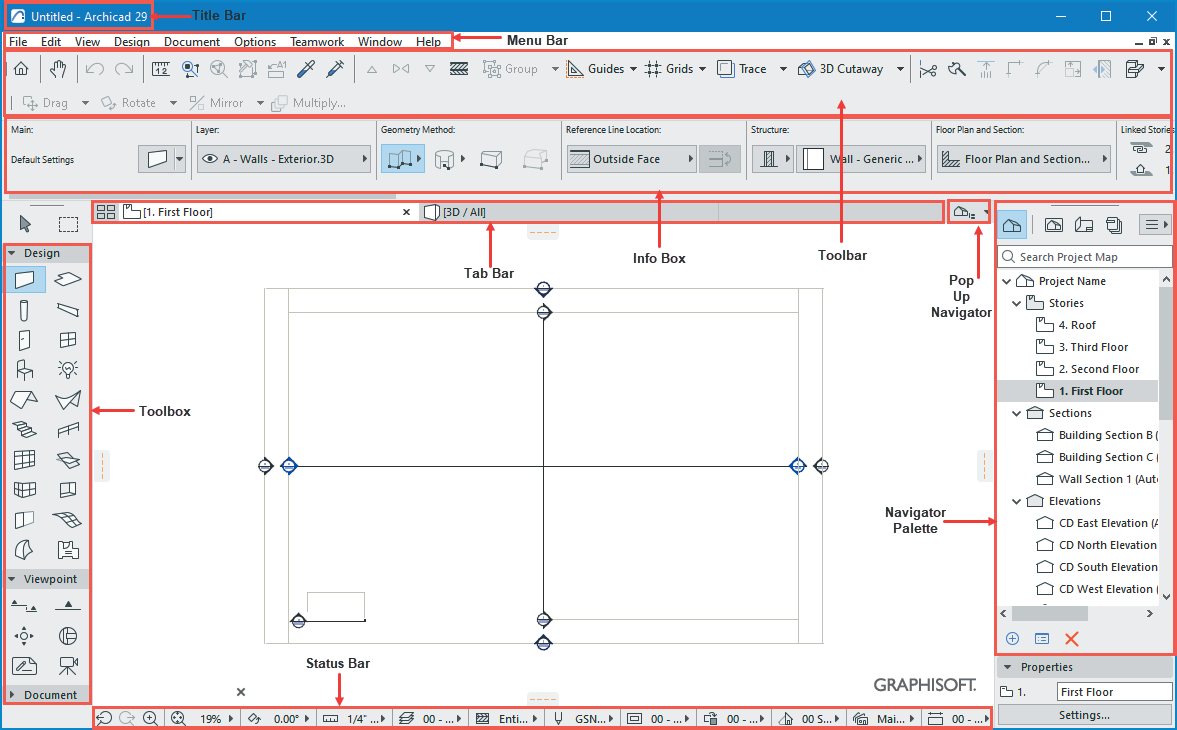
- Toolbox: provides tools for creating design elements such as walls and slabs, as well as tools for viewpoints and documentation.
- Toolbar: gives quick access to frequently used commands, including Undo and Redo.
- Info Box: displays settings for the currently active tool and allows those settings to be changed.
- Navigator: helps you move among views, stories, layouts, and drawings. Its tabs include Project Map, View Map, Layout Book, and Publisher. The Project Map contains model views such as floor plans, sections, and 3D views; View Map contains saved views; Layout Book contains layouts for printing and documentation; and Publisher is used to publish or export drawings and documents.
- Status Bar: displays tips, coordinate information, and prompts related to the current operation. The book also discusses navigation commands available there, including previous/next zoom, increase zoom, Orbit in 3D view, and Explore in 3D view.
5. A simple workflow to remember
The steps covered in the sample form a straightforward starting workflow: open Archicad Home, create a new project from a suitable template or browse to an existing project, use the Learning Center when you need guided help, and learn the role of the interface areas as you work. Once these basics are familiar, the book proceeds to other project-management topics, including opening, closing, and saving project files, interoperability and external content, BIMcloud sharing, and printing documents.
About Archicad 29 Black Book
The Archicad 29 Black Book is a practical reference, with step-by-step procedures and screenshots accompanying its explanations of Archicad tools and workflows. Visit our store or Amazon to get a copy
For queries or suggestions about the book, write us at cadcamcaeworks@gmail.com.